
Invite your team
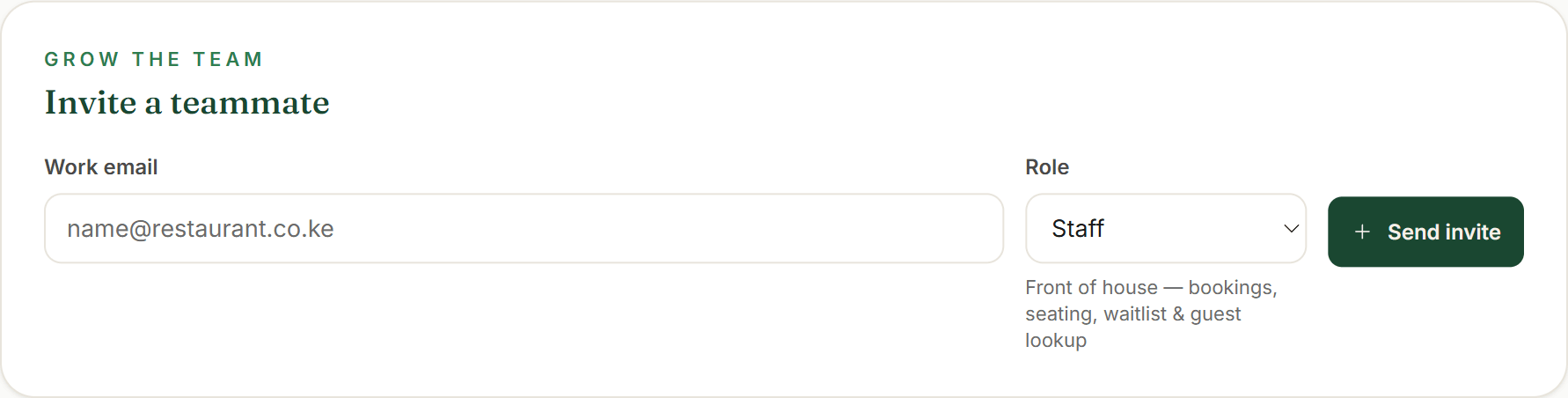
You’re the owner — that’s set the moment you sign up. To add anyone else, open Settings → Team & roles and the Invite a teammate card. Enter their Work email, pick a Role — Staff or Manager — and press Send invite. Staff run the floor (bookings, seating, waitlist and guest lookup); a Manager adds the daily-ops reins — they can invite people too, but not remove teammates or touch billing.
Your teammate gets an email with an accept link that expires in 3 days. Until they accept, they sit under Pending invitations, where you can Cancel and re-send. That’s the whole roster in the pilot — you as owner, plus the managers and staff you invite.
- Open Settings → Team & roles → Invite a teammate
- Enter their Work email, pick Staff or Manager, then Send invite
- They accept an emailed link within 3 days; track it under Pending invitations
Founder tip: Invite by the email they’ll actually check — the accept link only lasts three days. And a manager can send invites too, so you don’t have to be the one adding every new hire.
Know what every role can do
The Roles & permissions tab lays out exactly what each role can touch — Owner, Manager, Staff and Server — across bookings, the floor, guests, the menu, orders, money and admin. It’s a read-only map: roles are fixed for the pilot, so this is the honest picture of who can do what, not an editor you tweak.
The short of it: Owner has full control — settings, money and team; Manager runs daily ops — can invite, but no removals or billing; Staff is front of house — bookings, seating, waitlist and guest lookup; and Server is view-only — today’s floor, bookings and guest lookup. You hand out Manager and Staff; Owner is you, and Server isn’t assignable in the pilot.
- Open the Roles & permissions tab
- Read what each role — Owner, Manager, Staff, Server — can touch
- It’s read-only: roles are fixed for the pilot
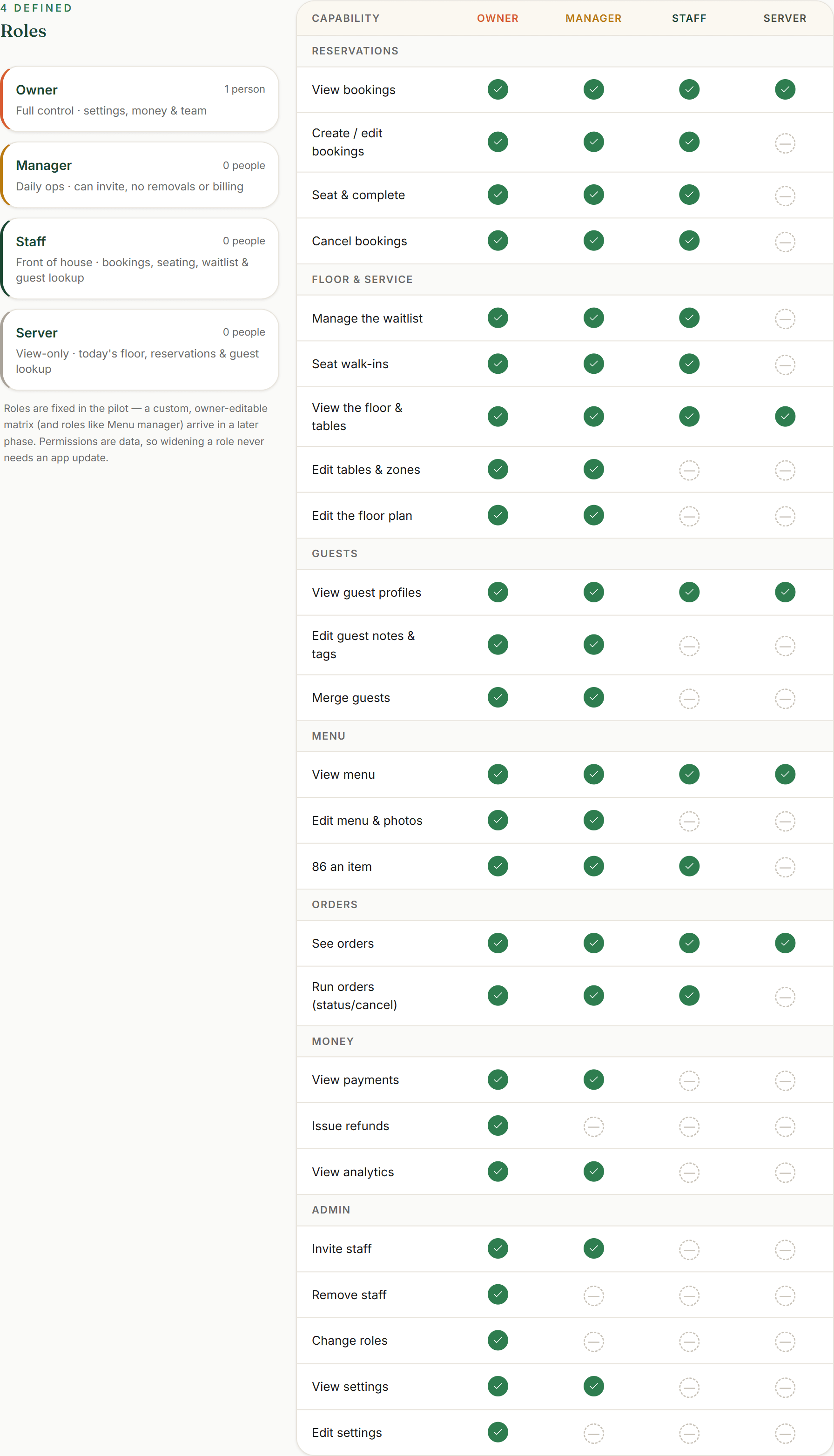
Founder tip: Point new staff at this tab on day one — it answers “am I allowed to…?” before they have to ask. And it’s the same grants the app actually enforces, so what it shows is exactly what they can do.
Walk the host stand
Now the part your front-of-house lives in. Today is the host stand: a live service ribbon up top (covers booked, tables seated, who’s arriving), the per-table timeline with a now-line, and the buttons a host reaches for — Run-sheet to print the day on paper, Walk-in, and New booking.
When walk-ins arrive, Seat a walk-in shows the tables free right now — Seat at the best table for the auto-pick, or Seat here on a particular one. Nothing free? Join the waitlist holds their place with a quoted wait. And the live Floor plan is where it all comes together: drag a waiting party from the rail straight onto a free table to seat them — it works with a mouse or a finger on a tablet — or tap Seat now… to pick the table. Building that floor is its own guide: Build your floor plan.
- Start the shift on Today — the live ribbon, timeline and Run-sheet
- Take walk-ins with Seat a walk-in → Seat at the best table or Seat here
- Queue on the waitlist, then drag a party onto a free table on the live floor

Founder tip: Run the host stand on the tablet at the door. Drag-to-seat is built for a finger, so a host can work the whole floor — seat walk-ins, clear the waitlist — without ever touching a keyboard.
Run a practice night
The best training isn’t a video — it’s a dry run on the real thing. Before you open, have your team take a few bookings from New booking, seat them, push a party onto the waitlist and clear it, drag a table on the live floor, and print a Run-sheet. Karamu has no separate practice mode, and it doesn’t need one: everything a host will do on a Friday, they can rehearse today on your real floor with pretend guests.
One habit worth setting on a shared host-stand tablet: after a spell of no activity the screen locks itself (Screen locked), and each person unlocks with their own password. At a shift change, Not you? Switch user signs one person out so the next signs in — there’s no shared PIN, so every action on the floor stays tied to the person who did it.
One word to teach with it: 86. It’s kitchen shorthand for “sold out” — to 86 a dish is to take it off tonight’s menu, and a dish that is off reads as 86’d. Guests never see the term, and they never see the dish either: nobody can order an 86’d dish from the moment it is flipped, it drops off their menu within a few minutes, and anything already in a cart is refused with Just sold out. Your kitchen does it from the kitchen display; an owner, manager or host can also do it from the 86 board under Menu, and a server can see that board without changing it.
- Teach the word 86 — it means sold out, and the dish leaves the guest menu
- Rehearse a real service — bookings, seating, waitlist, floor, run-sheet
- There’s no practice mode; the real floor with pretend guests is the rehearsal
- On a shared tablet, unlock with your own password; Switch user at a shift change
Founder tip: A fifteen-minute dry run the day before you go live beats any manual. Your team hits seat, waitlist and run-sheet for real, with nothing on the line — so on opening night the moves are already muscle memory.